
- Navigate to the Event where you want to add custom fields.
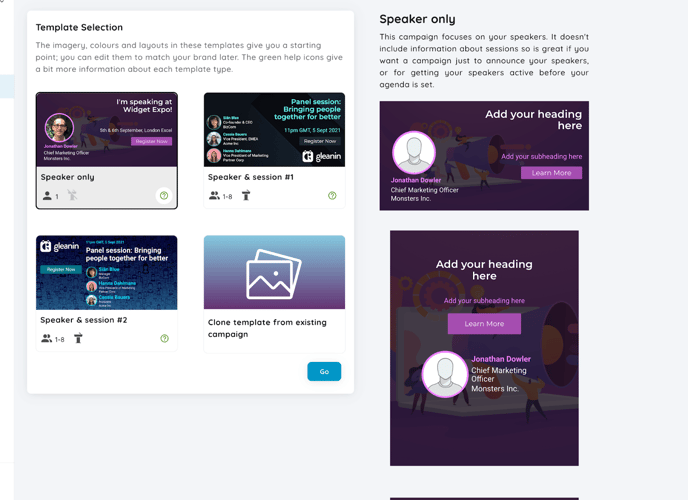
- Create a Speaker-only campaign (this selection is essential, as the feature is not available for campaigns that include both speakers and sessions).
- Once the campaign is created, from the left-hand side menu, clickCustom fields.
- Create the following three custom fields with the requirements below
- Background Image:
- Stakeholder: Speaker
- Field Type: Image
- Label: Background Image
- APIName: cf_background_image
- Publicly Visible: yes
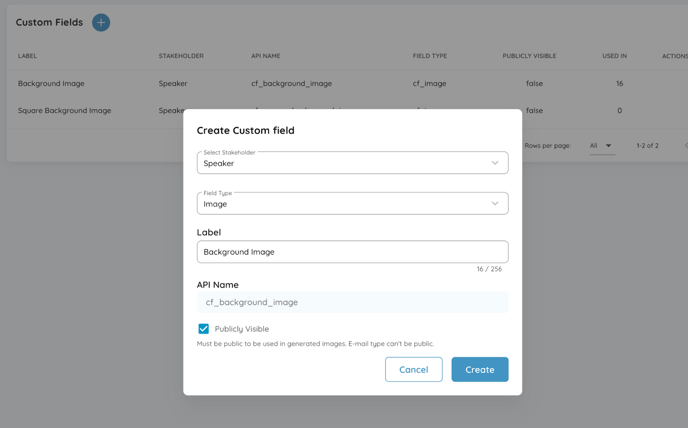
- Square background image:
- Stakeholder: Speaker
- Field Type: Image
- Label: Square Background Image
- APIName: cf_square_background_image
- Publicly Visible: yes
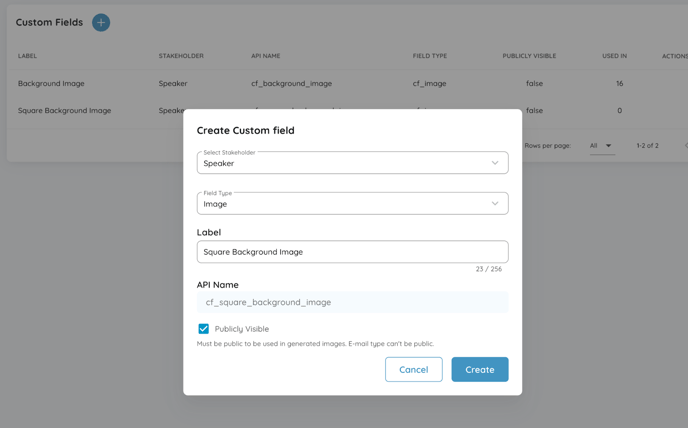
- Story background image:
- Stakeholder: Speaker
- Field Type: Image
- Label: Story Background Image
- APIName: cf_story_background_image
- Publicly Visible: yes
- Background Image:
- Go back to the speaker-only campaign created and go to the Theme section.
- Click on Edit Theme and hide all the Gleanin fields (some of the elements might be unhiden once the new template is created, but to test if it works, please hide all).
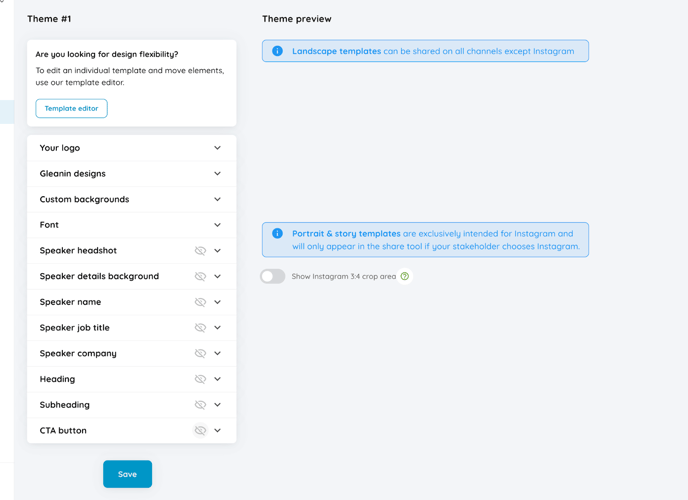
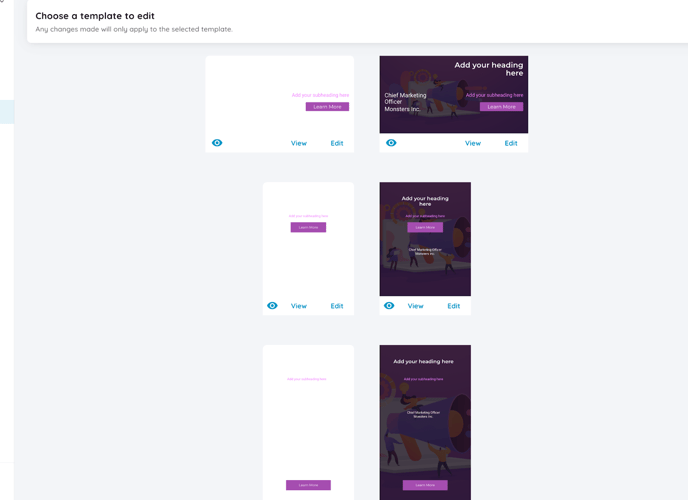
- Go back to the Theme section, click on Edit and go to theindividual image template.
- Once there, hide all non-headshot templates.
Now that the setup is done, you can upload your speaker images, which is a slightly different process for the custom fields feature.
- Choose Speakers on the left-hand side menu.
- Click on the name of the speaker for whom you want to upload the custom template.
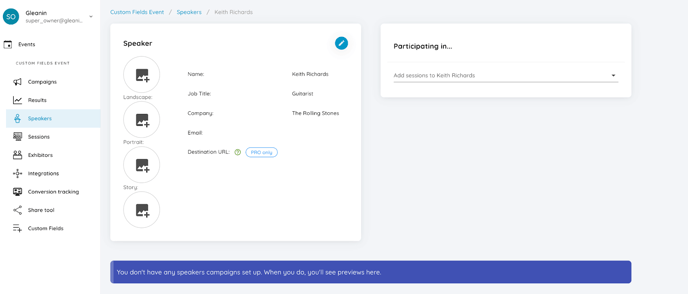
- You have to upload individually the following (if you do not want to use Instagram as a share option, you can leave the portrait and story template blank):
- Speaker headshot
- Landscape template
- Portrait template (old square Instagram only)
- Story template
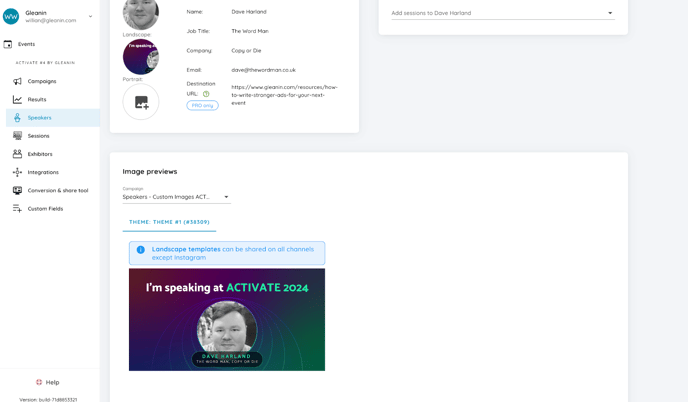
- Once all are uploaded, you will be able to see the preview of the templates generated in the speaker profile.
As this is a beta feature, you may encounter occasional issues. If you do, please contact us at hello@gleanin.com.
- I'm not sure if elements are useful here for your case. Might be able to use speakers headshot anyway or other elements (they would be on top of the custom background image).
- Upload speakers images:
Sample speaker custom image uploaded:
- Us:
- Account subscription must be enabled with flag: custom_fields
- Check Themes on campaign and update then:
- Account subscription must be enabled with flag: custom_fields
campaign = Campaign.find # MyId
campaign.variants.where(current_advocate_headshot_required: true).find_each do |variant|
landscape_styles = variant.template_landscape_styles
square_styles = variant.template_square_styles
template_story_styles = variant.template_story_styles
landscape_styles["main__container"]["backgroundImage"]["dkey"] = "speaker.cf_background_image_url"
square_styles["main__container"]["backgroundImage"]["dkey"] = "speaker.cf_square_background_image_url"
template_story_styles["main__container"]["backgroundImage"]["dkey"] = "speaker.cf_story_background_image_url"
variant.update!(
template_landscape_styles: landscape_styles,
template_square_styles: square_styles,
template_story_styles:
)
end