
If you want to generate more engagement and ask your stakeholders to create personalised videos to share about their attendance, you can do that with the Gleanin video tool.
It will allow you to get personalised testimonials and promotional content from your stakeholders for them to share with their networks and for you to access and share on your end.
Setting up the video tool
Once you have created your campaign, you need to follow the steps below to enable the video recording tool. Please make sure you are on the new campaign dashboard layout to access the tab.
- Navigate to the Video tab in the dashboard.
- Enable video recording.
- Upload your video banner:
- The video banner will be positioned at the top of the video and must include your logo, the event name, and the event dates. The banner must be sized at 1080 x 300 pixels. You can preview how the banner will appear on the recording screen in the right-hand side preview area. See an example below:
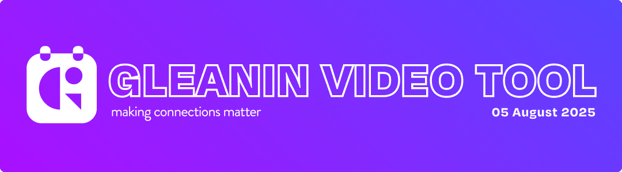
- The video banner will be positioned at the top of the video and must include your logo, the event name, and the event dates. The banner must be sized at 1080 x 300 pixels. You can preview how the banner will appear on the recording screen in the right-hand side preview area. See an example below:
- In the notes for stakeholders box, please add guidance that outlines the key points you would like them to cover, such as the event name, their specific session, and any other pertinent details.
- Save changes.
Generating links
After setting up the video and uploading the banner, you can create links to distribute to your stakeholders. Please note that you cannot share these links directly from Gleanin unless you have configured an outbound integration. However, you can easily export a .csv file containing the links, which can then be utilised within your CRM system.
To generate the links
- Go to the Video tab
- Double-check that all the settings are correct and nothing is missing (branding, copy, etc.)
- Click onStakeholder links
- You can either share the links one by one with your stakeholders or download the mail merge file to use with your CRM system.
- Each video link will serve as a personalised dashboard for your stakeholders. Whenever they access it, they will have the option to view the video they have previously recorded or to record a new one if they haven't done so already.
Please note that these links are separate from the standard advocacy tool links (which need to be generated via the Run campaign section).
Best practice
For you
When writing the notes and copy for your stakeholders, it is good to think about what you want to achieve through their video for your event.
Think about who the audience is and what you want them to know and feel. Your stakeholders can go freestyle and go off script; however, it is still important for you to make sure they know what the main message is that you want them to convey.
Keep it clear, concise, and conversational. Structure is important, especially for longer videos. Start with the introduction, move to the value proposition and give a clear action at the end - be it register in general or see a specific speaker.
Remember, as well, to make sure that you are not trying to squeeze a lot in those 30s, as your stakeholders need time to breathe! And of course, you don’t want to make it sound rushed and unnatural. It is better to say less but with more authenticity and feeling than to sprint through the script.
For your stakeholders
Your stakeholders will see general best practice tips on the video welcome screen; however, it is a good idea to give them some guidance in the email to make sure they are set up for recording the best video. Of course, you know them best, and some of them will have experience in doing this, and if you think they won’t find it helpful, just skip it.
The positioning of the note text will make it look like they are looking directly at the camera. Mimicking eye contact is a great way to create a connection.
Make sure that the copy you have given them is as concise as possible to allow them to speak clearly and confidently. You want them to use natural tone and energy, and definitely want them to smile and show enthusiasm, although you don’t want this to be over the top.
Ask them to use good body language. They can sit or stand tall, use hand gestures sparingly, and avoid fidgeting. You don’t want the video to be just a talking head with the rest of the body looking stressed and unnatural; modern audiences pick up on that instantly.
Ask them to do some technical preparation before recording: good lighting is key to a clear and bright video. It is best recorded facing a window or using a soft light source in front of you, and avoid backlighting if possible.
Make sure that they check your audio quality. Video on the go is cool, but when the volume goes up and down, it might not give the audience the best experience. Ask them to use an external microphone if possible, and if not, at least find a space where the background noise and echo are eliminated.
The same goes for the camera. Stability is their friend. If they can use a tripod, that’s great; if not, propping their phone up at eye level should work and asking them to use a clean, non-distracting background, such as a neutral wall or tidy workspace, works well.
Suggest a dry practice a few times before using the tool. Some people are natural, and some need extra time, so not adding pressure by asking them to record straight away using the tool and rehearsing until it flows naturally could be a great help.
And last but definitely not least, ask them to be themselves, as this is why their audience loves them. It is ok to make mistakes and stumble; authenticity is more persuasive than perfection.
Accessing recorded videos
After your stakeholders have finished recording their videos for the campaign, you can easily access and download them for use on your social media platforms.
To access the already recorded videos:
- Go to the Video tab
- Click on theVideo gallery
- You will only see videos that have been recorded and processed. From this section, you can download these videos or reach out to any stakeholders who may still need to record their contributions.
If you see a Download raw file button instead of the standard Download button, this indicates that the video is still processing and may take a few minutes to become available. If the Download raw file button remains visible after an hour, please reach out to us at hello@gleanin.com, and we will investigate any potential issues.