
You are able to change the font on your template through Theme editor.
If you are on a Basic subscription you have a choice of fonts available to use: Montserrat, Heebo, Roboto, Inter, Lato, Source Serif Pro & Cabin and if you are a Pro subscriber you can upload your own fonts if you have them in a .OTF, .WOFF and .WOFF2 (Latin encoding) formats.
To change the font on your templates:
- Go to your Campaign dashboard.
- On Theme tile, click on Edit current.
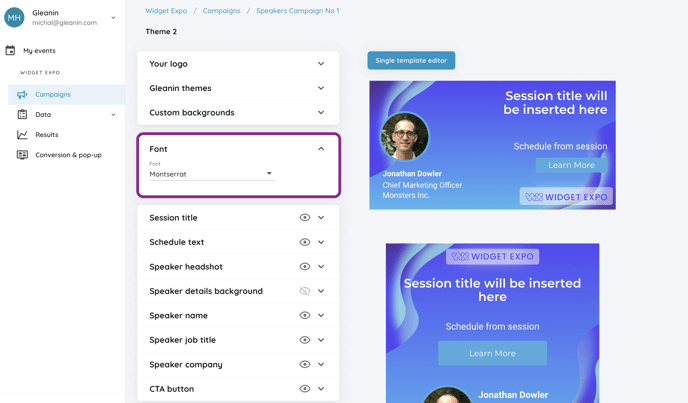
- From the Theme menu expand Font row.
- Choose the font that you would like to use from the drop-down selection.
To upload your own font (PRO only):
- Go to your Campaign dashboard.
- On Theme tile, choose Edit current.
- From Theme menu expand Font row.
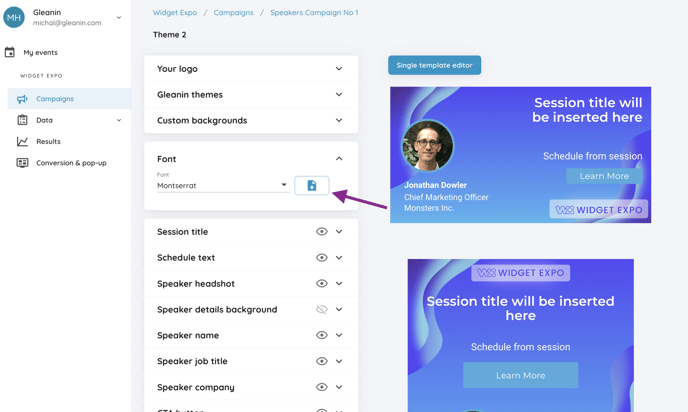
- Click on the upload icon next to the font selection drop-down.
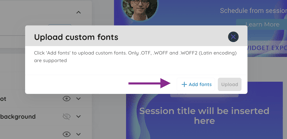
- Click on the Add Font button, add the file from your device and click Upload.
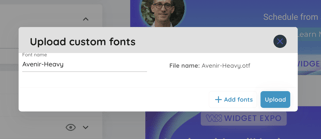
- The font will be uploaded and the pop-up will close automatically and your font will be available in the drop-down selection.
NOTE: If the upload window goes to 100% and doesn't close automatically, please make sure that the font file you have is the supported one. If everything is correct with the file, and the pop-up is still stuck on 100% please reach out to hello@gleanin.com.
For more guidance on assets creation please see the articles below: