
Whenever you create a new theme for your campaign, by default our system creates multiple templates with different variations, including headshots, multiple speakers, etc., in both landscape and square aspect ratios.
If you know that there are specific types of images that you don’t want your community to share (e.g. you always will have speakers’ headshots or exhibitors' logos on the template) you can hide all the ones you don’t want to offer.
Hiding a template will remove it from the advocacy tool and will also grey it out on the templates page making it easier for your design team to focus on working on the templates that will be used.
NOTE: Speakers, exhibitors, and attendees will only see the square images when they choose to share on Instagram.
Hiding templates
- Go to the Campaign in question.
- On the Themes tile chooseEdit current.
- Go toSingle template editor
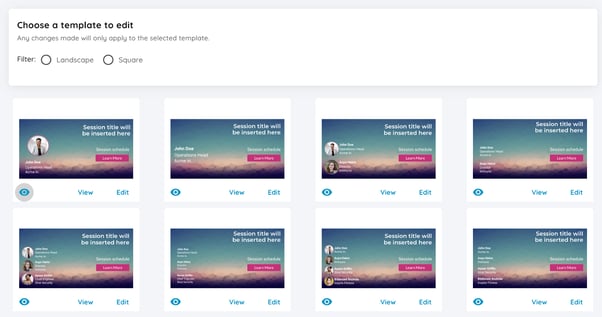
- To hide a template from the campaign click on the eye icon.
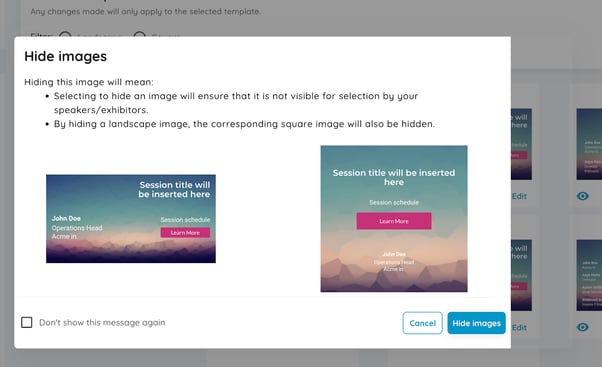
As you will be hiding a pair of templates (the landscape and square option) you will see a notification on the pop-up window showing which templates will be hidden. Please remember that we are unable to hide individual templates.
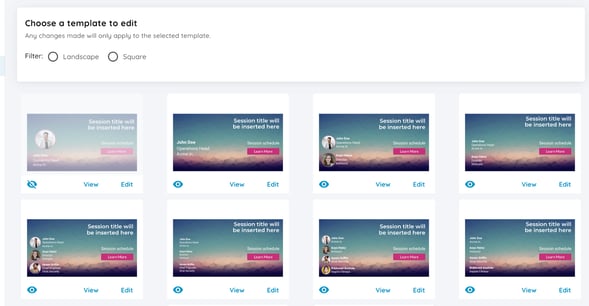
Once the templates are hidden they will be greyed out. To include them in your campaign, simply click the eye icon again to unhide them.
For more design and theme editing guidance please visit the articles below.
How do I use the Single template editor?
How should I design my custom backgrounds for the speaker & exhibitor campaigns?