
Integration setup
Data import
Outbound integration
Data reference
Setting up the integration
The MYS integration requires Pro and needs a one-time activation by your MYS account manager before you can connect.
- Once your event is set up in MYS, ask your MYS account manager to email hello@gleanin.com to confirm that the event and the MYS Event ID you wish to integrate are owned by your organisation. Include the MYS Event ID in the email — do not share passwords or access keys.
- Once we have added the ID, log in to your Gleanin account and go to Integrations in the left-hand menu.
- Click the Add integration and select MYS.
- Choose the type of integration: Speakers & Sessions or Exhibitors.
- Select your Map Your Show Event ID from the dropdown. If the correct event ID is not shown, contact us at hello@gleanin.com.
- Click Save integration to verify your credentials. If correct, you will move to the formatting options step to complete setup.
- If setup fails, check with your MYS account manager that the Event ID is correct and that access has been granted to Gleanin. If problems persist, contact us at hello@gleanin.com.
Data import
Once connected, you trigger syncs manually:
- Go to Integrations in the main menu.
- Click the import icon on the right side of your MYS integration.
- A green dot on the clock icon confirms a successful import.
Sync time varies with data volume — typically a few seconds, occasionally up to an hour. A red background on the integration card means the sync failed; try again. If it stays pending for over an hour or fails repeatedly, contact us at hello@gleanin.com.
Outbound integration
Once your exhibitor data is imported and your campaign is configured, you can send personalised exhibitor links back to MYS. This feature is available for exhibitor campaigns only.
Sending share links for all exhibitors
- Complete the inbound data sync first.
- Ask your MYS account manager to add a custom field named gleaninexhibitorlink for exhibitors on that event.
- In your Gleanin account, go to Integrations and click the plus icon next to the Outbound section on your MYS integration.
- Click Check custom field to verify it has been added on the MYS side.
- If verification passes, click Create.
- After successfully setting up the outbound integration, it will be visible on your integrations page.
- Click on the Send share links arrow icon to transfer the hub links to your MYS account.
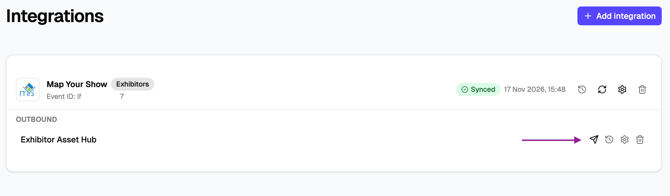
To remove the outbound integration, click the Trash icon. This will not remove any links already sent to MYS.
Sending share links for specific groups of exhibitors
If you have assets assigned to specific groups, you can choose which groups to send share links for. Follow the outbound integration setup steps above, but instead of completing step 7, follow these steps:
-
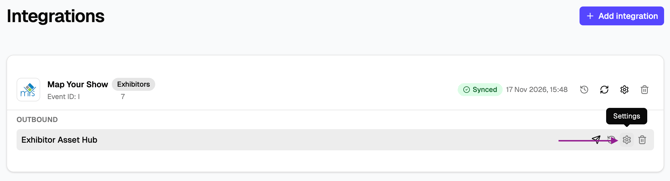
Click the cog icon on the outbound integration to open settings.
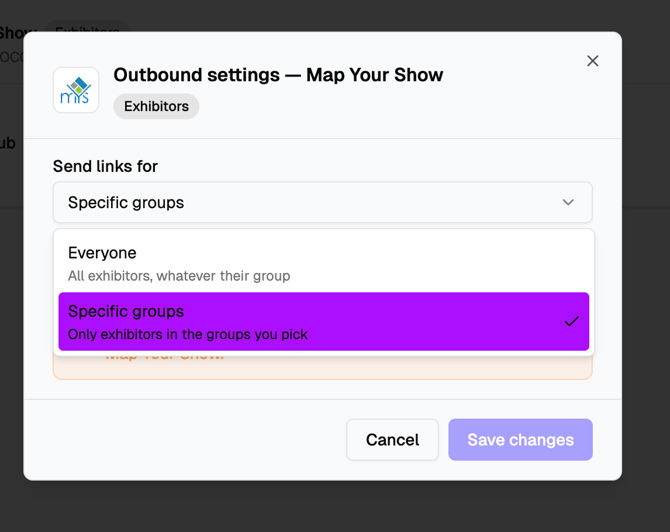
- Open the dropdown menu and select Specific groups
- Click the + icon to view the available groups, then tick the box next to the group you want to select.
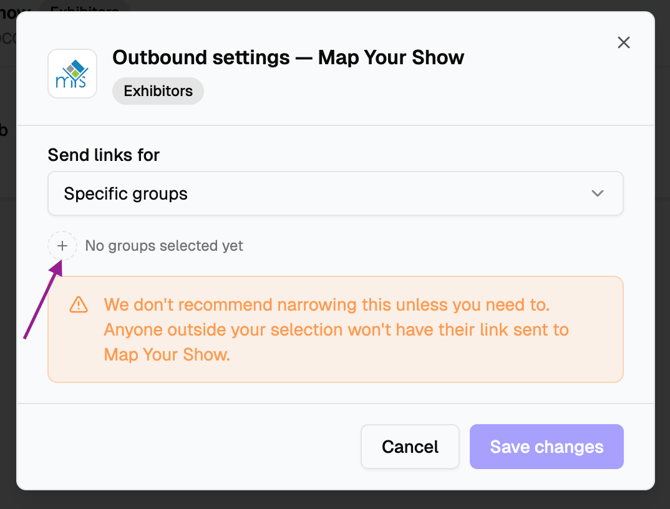
- Click Save changes.
- Check that the selected group appears on the outbound integration, then click the Send share links arrow icon to send its links.
To send links for additional groups, repeat these steps for each group.
Please be aware that the outbound integration feature is available for exhibitor assets hubs only.
Data reference
The tables below show which MYS fields Gleanin reads by default and what each is used for. Any other MYS attribute can be mapped to a Gleanin field or custom field per event, so these are the defaults rather than the limit.
Speakers
| MYS field | What we use it for |
|---|---|
firstname |
Speaker's name (joined with lastname) |
lastname |
Speaker's name (joined with firstname) |
title |
Job title |
company |
Company name |
photourl |
Speaker photo — ignored unless it points at an actual image file |
email |
Speaker's email |
speakerid |
The ID we match on, so re-syncs update the speaker instead of duplicating them |
schedules[] |
Source of the speaker's sessions and the speaker↔session links |
conferenceid |
Tells us which conferences to fetch speakers for |
speakersessionstatus |
Filtering — only speakers marked "Approved" are imported. If this field isn't present, all speakers are imported |
Sessions
Sessions are derived from each speaker's schedules[] array. The same session appears once per speaker assigned to it; Gleanin de-dupes by sessionid.
| MYS field | What we use it for |
|---|---|
sessiontitle |
Session title |
starttime |
Session schedule (combined with endtime into one display string) |
endtime |
Session schedule (combined with starttime) |
sessionid |
The ID we match on and de-dupe by |
Exhibitors
| MYS field | What we use it for |
|---|---|
exhid |
The ID we match on and use to fetch each full exhibitor record |
exhname |
Exhibitor name |
booths[0].boothnumber |
Stand code (can be pointed at a different field per event) |
email |
Exhibitor's email — or the first contact's email if that option is enabled for the event |
logo |
Exhibitor logo |
vipcode |
Discount code |
isactive |
Filtering — exhibitors where this is not set to 1 are skipped |
contacts[] |
Fallback source for the email address |