---
title: LinkedIn sharing
description: Help Center
---
[Skip to content](https://resources.gleanin.com/knowledge/linkedin-sharing#main-content)
[](https://gleanin.com/)
Open main navigation
Close main navigation
Welcome to the Gleanin help centre, search for an answer or navigate via the sections below
- There are no suggestions because the search field is empty.
1. [Help Center](https://resources.gleanin.com/knowledge?hsLang=en)
2. [Gleanin Classic](https://resources.gleanin.com/knowledge/gleanin-classic?hsLang=en)
3. [Running your campaign](https://resources.gleanin.com/knowledge/gleanin-classic?hsLang=en#running-your-campaign)
# LinkedIn sharing
## In this article, you’ll learn about the different LinkedIn sharing options and best practices for designing images for each one.
**[Enabling different sharing flows](https://resources.gleanin.com/knowledge/linkedin-sharing#flows)**
**[Auto-post](https://resources.gleanin.com/knowledge/linkedin-sharing#auto-post)**
**[Curated share](https://resources.gleanin.com/knowledge/linkedin-sharing#curated-share)**
**[Quick share](https://resources.gleanin.com/knowledge/linkedin-sharing#quick-share)**
**[Usage recommendation](https://resources.gleanin.com/knowledge/linkedin-sharing#recommendation)**
**[Quick share best practice](https://resources.gleanin.com/knowledge/linkedin-sharing#best-practice)**
### **Enabling different sharing flows**
### To choose which type of share you wish to use:
1. Go to your **Channel settings & suggested post**
2. Select **LinkedIn**
3. Click on the required option:
1. Auto-post
2. Curated share
3. Quick share
All campaigns are set with the auto-post option by default. However, you have the flexibility to go back and edit your existing campaigns to change the type of share for LinkedIn at any time.
### **Auto-post**
### Enabling this feature will guarantee that the images your stakeholders share will be posted in full size.
1. Go to your **Channel settings & suggested pos**t
2. Select **LinkedIn**
3. Enable **Auto-post**
Please remember that for an auto-post, the user will need to grant Gleanin access to their LinkedIn accounts. The permissions they are asked to grant us are the minimum required to enable us to auto-post. If the user chooses not to grant the permissions, you can still provide them with the option of a curated or quick share flow.
### **Curated share**
By choosing the curated share feature, you can guarantee that the images shared by your advocates will always be displayed in full size on LinkedIn. Your stakeholders will be guided step by step within the advocacy tool itself as they go through the process - please see the flow videos below.
#### **How it works?**
Once your advocate has selected LinkedIn in the Gleanin advocacy tool, they need to follow these steps:
1. Click on **Copy post for LinkedIn**
2. Click on **Download image**
3. Click on **Open LinkedIn**
After opening LinkedIn, your advocate should proceed with the following steps:
1. Add the image to the new Post form (this will open automatically).
2. Paste the text to include in their post.
By following this flow, your stakeholders will share their personalised links, allowing us to track and report on their engagement. If they simply download the image and post it on LinkedIn without including their personalised link, we won't be able to track their activity.
#### **Curated share on desktop**
#### **Curated share on iPhone**
#### **Curated share on Android**
### **Quick share**
This is the standard/current flow of the Gleanin advocacy tool and how posts are shared on various platforms.
**How it works?**
Once your advocate has selected LinkedIn in the Gleanin advocacy tool, quick share only involves a few steps:
1. Click on **Copy post**
2. Click on **Open LinkedIn**
3. Once LinkedIn has been opened, your advocate will just need to paste in their copied post and they are **ready to post**
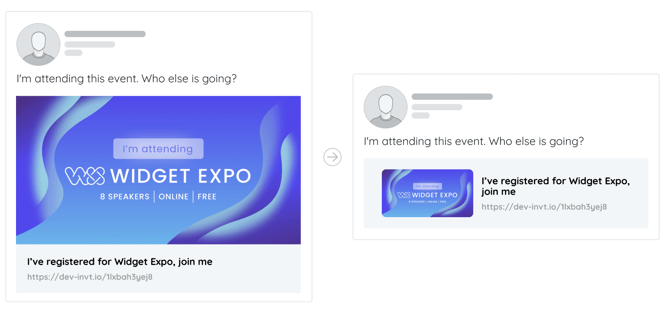
Engaging in the quick share process might impact how images appear on LinkedIn, with some of them resulting in a smaller thumbnail-size display.
Below you can see the comparison between curated share (left) and quick share (right) on LinkedIn showcasing the different display results based on the sharing method used.
### 
### **Recommendations**
For campaigns featuring speakers and exhibitors with detailed images and multi-panel sessions, we recommend using curated share. This option is ideal for advocates who are willing to invest more time in crafting their posts to ensure they stand out.
On the other hand, for campaigns focused on attendees with simpler images, quick share is the way to go. This option is perfect for advocates who are short on time but still want to share quickly and effectively.
### **Quick share best practice**
When opting for quick share, it's crucial to keep in mind key considerations when developing your assets, suggested text, and metadata.
1. Ensure that the text on your image is kept to a minimum for readability. With the significant reduction in preview size, it is important to ensure that your message remains visible to your potential attendees.
2. Update your LinkedIn [suggested post text](https://resources.gleanin.com/knowledge/configuring-channels?hsLang=en) to ensure it is both engaging and informative. Instead of a generic statement like "I'm attending this event. Who else is going?", consider a more compelling approach such as "Join me at the **EVENT NAME**!". This adjustment is important as the visual impact of your post has been minimised on LinkedIn.
3. Update the [Metadata](https://resources.gleanin.com/knowledge/how-can-i-edit-the-speaker-and-exhibitor-share-tool?hsLang=en#meta) title to make a strong impact on your feed. This text will appear alongside the thumbnail and suggested text post. Ensure it is impactful, concise, and engaging to capture attention. Remember, this title is also used as the social sharing title for other channels.
- [Gleanin](https://resources.gleanin.com/knowledge/gleanin?hsLang=en#main-content)
- [Asset hub](https://resources.gleanin.com/knowledge/gleanin?hsLang=en#asset-hub)
- [Attendee campaign](https://resources.gleanin.com/knowledge/gleanin?hsLang=en#attendee-campaign)
- [Asset creation](https://resources.gleanin.com/knowledge/gleanin?hsLang=en#asset-creation)
- [Upload and data](https://resources.gleanin.com/knowledge/gleanin?hsLang=en#upload-and-data)
- [Results](https://resources.gleanin.com/knowledge/gleanin?hsLang=en#results)
- [Advanced features](https://resources.gleanin.com/knowledge/gleanin?hsLang=en#advanced-features)
- [Managing your account](https://resources.gleanin.com/knowledge/gleanin?hsLang=en#managing-your-account)
- [Integrations | API & MCP](https://resources.gleanin.com/knowledge/gleanin?hsLang=en#integrations-api-mcp)
- [Gleanin Classic](https://resources.gleanin.com/knowledge/gleanin-classic?hsLang=en#main-content)
- [Managing your account](https://resources.gleanin.com/knowledge/gleanin-classic?hsLang=en#managing-your-account)
- [Running your campaign](https://resources.gleanin.com/knowledge/gleanin-classic?hsLang=en#running-your-campaign)
- [Upload and data](https://resources.gleanin.com/knowledge/gleanin-classic?hsLang=en#upload-and-data)
- [Asset creation](https://resources.gleanin.com/knowledge/gleanin-classic?hsLang=en#asset-creation)
- [Reporting](https://resources.gleanin.com/knowledge/gleanin-classic?hsLang=en#reporting)
- [Advanced features](https://resources.gleanin.com/knowledge/gleanin-classic?hsLang=en#advanced-features)
- [Tutorials](https://resources.gleanin.com/knowledge/gleanin-classic?hsLang=en#tutorials)
- [Data integrations](https://resources.gleanin.com/knowledge/data-integrations?hsLang=en)
- [Common questions](https://resources.gleanin.com/knowledge/common-questions?hsLang=en)
- [Best practice](https://resources.gleanin.com/knowledge/best-practice?hsLang=en#main-content)
- [Gleanin Classic](https://resources.gleanin.com/knowledge/best-practice?hsLang=en#gleanin-classic)
- [Product updates](https://resources.gleanin.com/knowledge/product-updates?hsLang=en#main-content)
- [Gleanin Classic & legacy updates](https://resources.gleanin.com/knowledge/product-updates?hsLang=en#gleanin-classic-legacy-updates)
[](https://gleanin.com/)
Copyright © 2026 Gleanin
```json
{
"@context" : "https://schema.org",
"@type" : "VideoObject",
"contentUrl" : "https://7244067.fs1.hubspotusercontent-na1.net/hubfs/7244067/LinkedIn%20Curated%20Share%20Desktop.mov",
"dateModified" : "2024-07-23T15:42:03.388Z",
"duration" : "PT28S",
"height" : 1800,
"name" : "LinkedIn Curated Share Desktop",
"thumbnailUrl" : "https://7244067.fs1.hubspotusercontent-na1.net/hubfs/7244067/LinkedIn%20Curated%20Share%20Desktop.mov/medium.jpg",
"uploadDate" : "2024-07-23T15:42:03.381Z",
"width" : 2880
}
```
```json
{
"@context" : "https://schema.org",
"@type" : "VideoObject",
"contentUrl" : "https://7244067.fs1.hubspotusercontent-na1.net/hubfs/7244067/LinkedIn%20iPhone%20Curated%20Share.mp4",
"dateModified" : "2024-07-23T15:43:38.837Z",
"duration" : "PT34S",
"height" : 1920,
"name" : "LinkedIn iPhone Curated Share",
"thumbnailUrl" : "https://7244067.fs1.hubspotusercontent-na1.net/hubfs/7244067/LinkedIn%20iPhone%20Curated%20Share.mp4/medium.jpg",
"uploadDate" : "2024-07-23T15:43:38.832Z",
"width" : 888
}
```
```json
{
"@context" : "https://schema.org",
"@type" : "VideoObject",
"contentUrl" : "https://7244067.fs1.hubspotusercontent-na1.net/hubfs/7244067/Linkedin%20Curated%20Share%20Android.mp4",
"dateModified" : "2024-07-23T16:07:46.405Z",
"duration" : "PT30S",
"height" : 1280,
"name" : "Linkedin Curated Share Android",
"thumbnailUrl" : "https://7244067.fs1.hubspotusercontent-na1.net/hubfs/7244067/Linkedin%20Curated%20Share%20Android.mp4/medium.jpg",
"uploadDate" : "2024-07-23T16:07:46.399Z",
"width" : 592
}
```