---
title: Template editor
description: In this article, you’ll learn how to use the template editor to design personalised image templates for exhibitors and speakers by moving and resizing elements to match your exact needs.
---
[Skip to content](https://resources.gleanin.com/knowledge/template-editor#main-content)
[](https://gleanin.com/)
Open main navigation
Close main navigation
Welcome to the Gleanin help centre, search for an answer or navigate via the sections below
- There are no suggestions because the search field is empty.
1. [Help Center](https://resources.gleanin.com/knowledge?hsLang=en)
2. [Asset creation](https://resources.gleanin.com/knowledge/asset-creation?hsLang=en)
# Template editor
## In this article, you’ll learn how to use the template editor to design personalised image templates for exhibitors and speakers by moving and resizing elements to match your exact needs.
When using the template editor, any changes you make will apply only to the specific template you’re editing, so you’ll need to update each template separately. Please also note that the template editor is available only for Speakers & Exhibitors campaigns.
For more information on hiding, deleting and downloading individual image templates, please see the article [here](https://resources.gleanin.com/knowledge/image-templates?hsLang=en).
**[Accessing the template editor](https://resources.gleanin.com/knowledge/template-editor#access)**
Using the template editor:
**[Moving, resizing and aligning objects](https://resources.gleanin.com/knowledge/template-editor#objects)**
**[Changing image shapes](https://resources.gleanin.com/knowledge/template-editor#image-shapes)**
**[Intelligent Text](https://resources.gleanin.com/knowledge/template-editor#text)**
**[Default templates](https://resources.gleanin.com/knowledge/template-editor#default)**
### **Accessing the template editor**
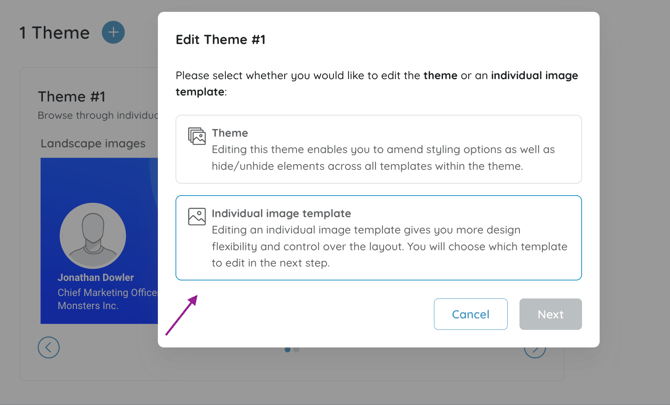
There are two ways of accessing the template editor. First is from the main themes menu by following the steps below:
1. Navigate to the **Campaign** that you would like to edit the image templates in
2. Go to **Themes** section
3. Click on the **Pencil icon** and choose**Individual image template**
4. Choose the template that you would like to amend and click on**Edit**
****
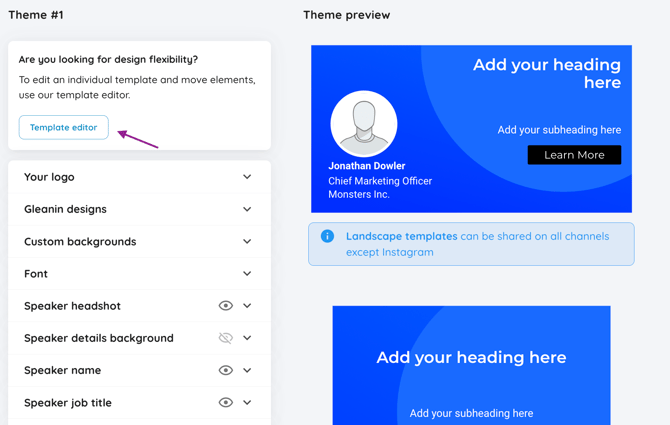
You can also access the template editor from the Theme edit menu by selecting the **Template editor** button located in the upper left corner of the modal.
---
### **Using the template editor**
#### **Selecting objects**
To select an individual object, simply click on the object in question. To select multiple objects, you need to click on the first one and then hold the "Shift" key to select the subsequent ones. To deselect, or if you want to select different objects, just click on the part of the template with no objects to remove the selection.
#### **Moving objects**
To begin using the editor, simply click on an object within the template to select it. Once selected, you can easily drag and reposition the object as desired. You can also use the X & Y coordinates and type in the values to place the object on the template.
#### **Resizing objects**
You can either drag out the handles of the bounding box or input specific X and Y coordinates in the right-hand side panel. If you're working with image elements such as logos or headshots, their aspect ratios are locked by default to prevent distortion, but you can unlock them by clicking on the padlock icon.
#### **Aligning individual objects**
To align a single object on your template, you can use the Centre on template options, which will give you the ability to align vertically to the centre of the template and align horizontally to the middle of the template. To use the Align elements functionality, you must select more than one element.
#### **Aligning objects in groups**
Separately, you can align objects within a group. To use this feature, you will need to position the first object of the group where you want it to be and then select the remaining ones and click on one of the alignment options. You can still use the Centre on template options; however, they are mostly used for individual elements.
#### **Text alignment**
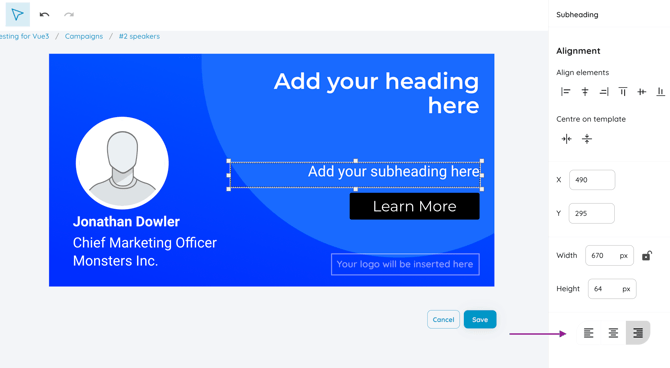
You can choose the alignment of the text within the object by using the text icons to align to the left, middle or right.
#### **Changing image shapes**
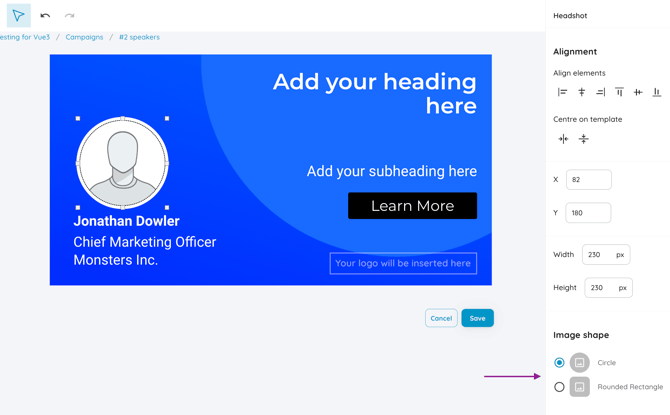
You have the option to choose between a circle and a rounded rectangle Image shape to apply to the [speaker headshot](https://resources.gleanin.com/knowledge/how-do-i-use-headshot-urls?hsLang=en) or the [exhibitor logo](https://resources.gleanin.com/knowledge/what-format-or-size-should-exhibitor-logos-be?hsLang=en).
#### **Saving changes**
Once you're satisfied with the changes made, you can save them or choose to cancel and discard any modifications. Please remember that all the changes made in the template editor apply only to an individual template, and if you want to change your speaker headshot/exhibitor logo image shape, you will need to change every single one individually.
### **IntelligentText**
Our intelligent text feature automatically adjusts the size of text, such as job titles, session titles, and speaker names, to fit perfectly within the text box without disrupting the design. This prevents any issues like text overlapping other elements or titles being cut off. However, it's important to keep in mind the length of the titles, as IntelligentText will resize the text to fit any size of text box or field. To ensure the best result, it's always a good idea to preview the final outcome and see how it will appear.
### **Using default templates**
If you are happy with our default templates and don't want to make any specific changes, we have documented our layout and background requirements in this [Figma](https://www.figma.com/file/bXxNTebi6AjhyAnZgXfe0C/Gleanin-Templates?node-id=117%3A78) file that you can share with your design team to help them generate perfect assets.
If you want to create background images for the Attendee campaign, please refer to the Attendee campaign section in the article [here](https://resources.gleanin.com/knowledge/using-custom-background?hsLang=en).
#### **Hiding elements**
In order to hide specific elements on the template, please refer to the managing themes article [here](https://resources.gleanin.com/knowledge/using-custom-background?hsLang=en#speaker-exhib-style), as this action needs to be done at the theme level
- [Asset creation](https://resources.gleanin.com/knowledge/asset-creation?hsLang=en)
- [Upload and data](https://resources.gleanin.com/knowledge/upload-and-data?hsLang=en)
- [Running your campaign](https://resources.gleanin.com/knowledge/running-your-campaign?hsLang=en)
- [Managing your account](https://resources.gleanin.com/knowledge/managing-your-account?hsLang=en)
- [Reporting](https://resources.gleanin.com/knowledge/reporting?hsLang=en)
- [Integrations & advanced features](https://resources.gleanin.com/knowledge/integrations-advanced-features?hsLang=en)
- [Tutorials](https://resources.gleanin.com/knowledge/tutorials?hsLang=en)
- [Common questions](https://resources.gleanin.com/knowledge/common-questions?hsLang=en)
- [Best practice](https://resources.gleanin.com/knowledge/best-practice?hsLang=en)
- [Product updates](https://resources.gleanin.com/knowledge/product-updates?hsLang=en)
[](https://gleanin.com/)
Copyright © 2026 Gleanin
```json
{
"@context" : "https://schema.org",
"@type" : "VideoObject",
"contentUrl" : "https://7244067.fs1.hubspotusercontent-na1.net/hubfs/7244067/Screen%20Recording%202024-09-25%20at%2007.55.14.mov",
"dateModified" : "2024-09-25T06:56:31.607Z",
"duration" : "PT5S",
"height" : 1546,
"name" : "Screen Recording 2024-09-25 at 07.55.14",
"thumbnailUrl" : "https://7244067.fs1.hubspotusercontent-na1.net/hubfs/7244067/Screen%20Recording%202024-09-25%20at%2007.55.14.mov/medium.jpg",
"uploadDate" : "2024-09-25T06:56:31.602Z",
"width" : 2414
}
```
```json
{
"@context" : "https://schema.org",
"@type" : "VideoObject",
"contentUrl" : "https://7244067.fs1.hubspotusercontent-na1.net/hubfs/7244067/Screen%20Recording%202024-09-25%20at%2007.57.56.mov",
"dateModified" : "2024-09-25T06:58:34.928Z",
"duration" : "PT12S",
"height" : 1546,
"name" : "Screen Recording 2024-09-25 at 07.57.56",
"thumbnailUrl" : "https://7244067.fs1.hubspotusercontent-na1.net/hubfs/7244067/Screen%20Recording%202024-09-25%20at%2007.57.56.mov/medium.jpg",
"uploadDate" : "2024-09-25T06:58:34.923Z",
"width" : 2414
}
```
```json
{
"@context" : "https://schema.org",
"@type" : "VideoObject",
"contentUrl" : "https://7244067.fs1.hubspotusercontent-na1.net/hubfs/7244067/Screen%20Recording%202024-09-25%20at%2008.04.45.mov",
"dateModified" : "2024-09-25T07:05:33.373Z",
"duration" : "PT16S",
"height" : 1546,
"name" : "Screen Recording 2024-09-25 at 08.04.45",
"thumbnailUrl" : "https://7244067.fs1.hubspotusercontent-na1.net/hubfs/7244067/Screen%20Recording%202024-09-25%20at%2008.04.45.mov/medium.jpg",
"uploadDate" : "2024-09-25T07:05:33.368Z",
"width" : 2414
}
```
```json
{
"@context" : "https://schema.org",
"@type" : "VideoObject",
"contentUrl" : "https://7244067.fs1.hubspotusercontent-na1.net/hubfs/7244067/Screen%20Recording%202024-09-26%20at%2014.15.14.mov",
"dateModified" : "2024-09-26T13:15:58.468Z",
"duration" : "PT9S",
"height" : 1546,
"name" : "Screen Recording 2024-09-26 at 14.15.14",
"thumbnailUrl" : "https://7244067.fs1.hubspotusercontent-na1.net/hubfs/7244067/Screen%20Recording%202024-09-26%20at%2014.15.14.mov/medium.jpg",
"uploadDate" : "2024-09-26T13:15:58.461Z",
"width" : 2414
}
```
```json
{
"@context" : "https://schema.org",
"@type" : "VideoObject",
"contentUrl" : "https://7244067.fs1.hubspotusercontent-na1.net/hubfs/7244067/Screen%20Recording%202024-09-25%20at%2008.25.30.mov",
"dateModified" : "2024-09-25T07:27:01.612Z",
"duration" : "PT20S",
"height" : 1546,
"name" : "Screen Recording 2024-09-25 at 08.25.30",
"thumbnailUrl" : "https://7244067.fs1.hubspotusercontent-na1.net/hubfs/7244067/Screen%20Recording%202024-09-25%20at%2008.25.30.mov/medium.jpg",
"uploadDate" : "2024-09-25T07:27:01.607Z",
"width" : 2414
}
```